The Vendors page lists the vendors in a company's books and where each one's invoices come from. Caribooks looks for those invoices in the mailboxes and vendor portals you connect and puts them in the document box. It never changes your books: a loop or your assistant attaches them.
Vendors is part of Autopilot and works for the companies Autopilot covers, chosen under Settings → Billing. The page shows one company at a time; pick it in the Company list or from the list the page offers.
Connect a mailbox
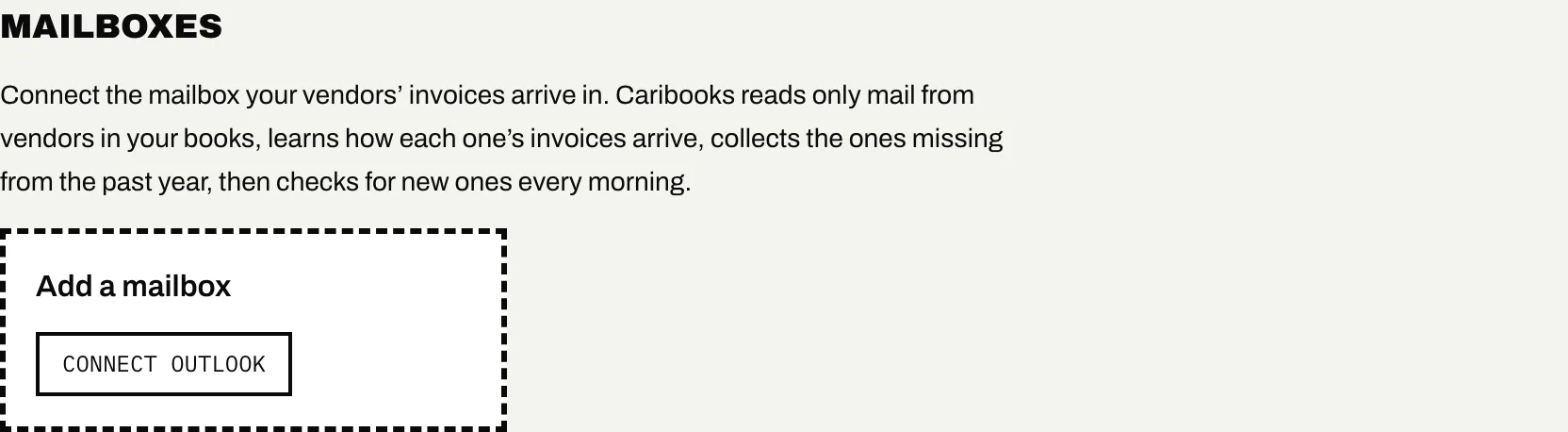
Outlook and Microsoft 365 mailboxes connect today. Gmail is coming.
- Under Add a mailbox, click Connect Outlook.
- Sign in with Microsoft and allow Caribooks to read your mail. The access is read-only, and Caribooks never sends mail from your account.
- If more than one company is on Autopilot, tick the ones this mailbox serves under Companies and click Save. Nothing in the mailbox is read until you do. With a single Autopilot company, it is served at once.
You can connect several mailboxes, each serving its own companies. A company you put on Autopilot later is served only once you tick it. Anyone on your team can connect a mailbox; only whoever connected it, or the account owner, can change its companies or Disconnect it. Disconnecting stops the reading and forgets what was learned there. Documents it brought in stay in the box.
How Caribooks learns where invoices arrive
Caribooks looks only for vendors on the companies' expenses of the last twelve months. For each one, it searches the sender and subject of your messages for the vendor's name and keeps only what reads as a receipt, an invoice, an order or a bill. An AI agent reads a few of the likeliest messages. A sender is saved only when one of its invoices matches the amount and date of one of that vendor's expenses. When the vendor's emails point to an invoice on its website, Caribooks notes the portal instead.
Once a sender is known, Caribooks collects the past year's invoices for expenses still missing a document, then checks for new ones every morning. The morning check also goes back for a charge booked after its invoice had already arrived. An invoice in another currency matches an expense booked at the Bank of Canada's rate for its day, with room for a card's conversion fee.
What it finds goes into the document box with the source Mailbox: the attached invoice, or the email itself as a PDF when the email is the receipt. Nothing goes into QuickBooks from a mailbox. When a vendor bills more than one of the companies a mailbox serves, its invoices are left to be sorted.
If a find is wrong, open it on Documents and click Not {vendor}'s invoice. That message is never taken again, and after two such answers Caribooks relearns the vendor. After three failed attempts on a vendor, it stops until you ask it to search again.
Needs you and Handled
- Needs you: a vendor with expenses missing a receipt and no known source for its invoices (no mailbox, nothing found, a portal not connected yet or one that stopped working). Also a vendor with a known source whose recent charge still has no receipt after ten days, or 30 days for one you forward.
- Handled: its invoices come in, nothing is missing, or you said it sends none. This group is folded; click Show.
Once a source is known, older charges are left to your loops; the vendor comes back to Needs you only for charges booked since. A receipt counts once it is attached to its expense in QuickBooks.
Tell Caribooks where a vendor's invoices are
Click Where from?, or Change once a source is known:
- Its invoices are on a vendor portal, then Connect portal.
- I'll forward them: the row shows the address to forward to. Mailboxes keep searching for the vendor in case its invoices start arriving by email.
- No receipts for this vendor: it moves to Handled and is no longer searched.
- Its invoices come from…: a full address, or @ and the vendor's own domain. A public domain such as @gmail.com is refused.
- Search my mailboxes again, or Let Caribooks decide to clear your answer.
Each charge listed under a vendor in Needs you has two answers of its own. Drop the receipt adds the file to the box pinned to that charge, so a loop attaches it without searching. No receipt takes the charge off the vendor's list.
Vendor portals
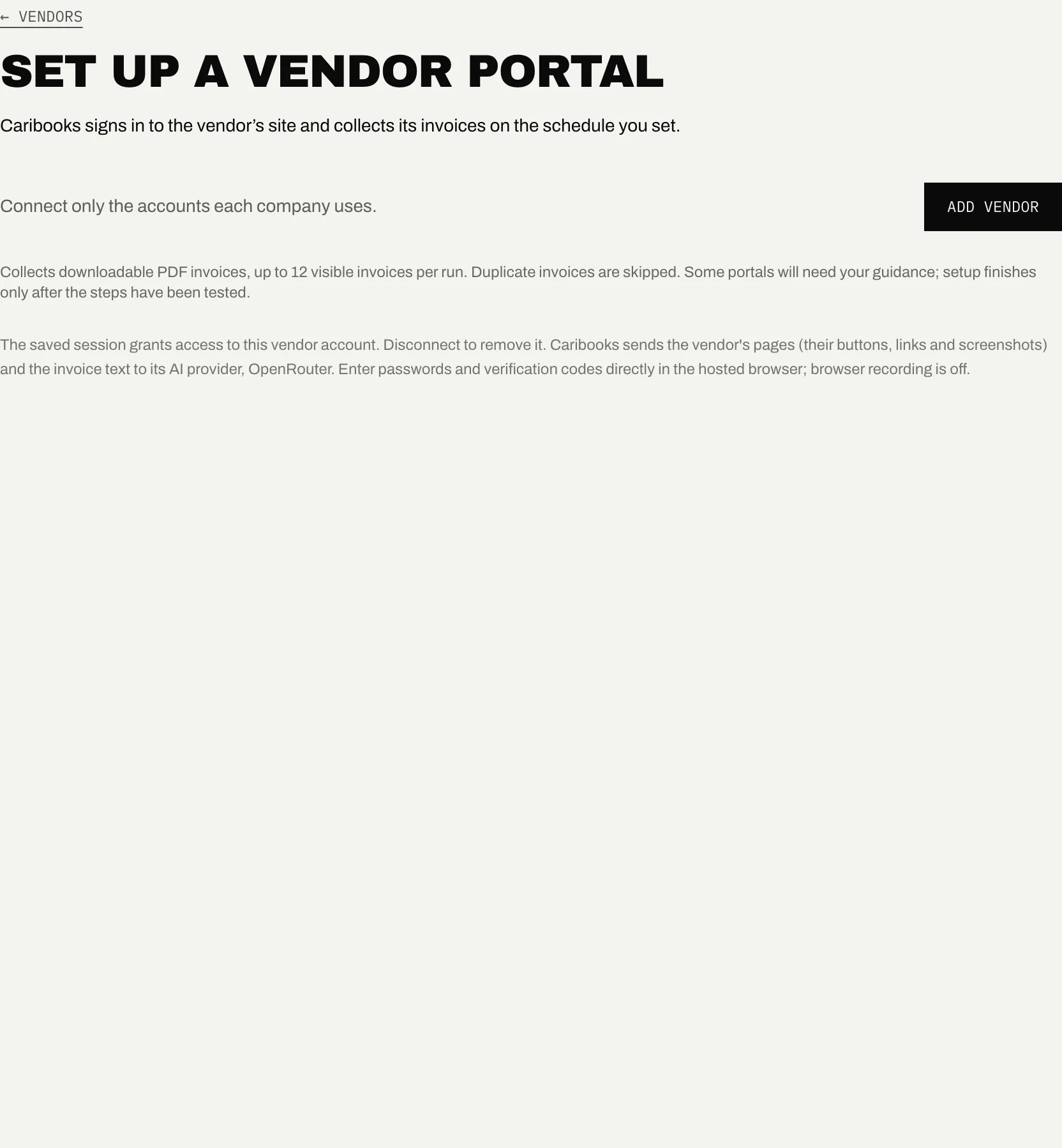
Some vendors keep invoices behind a sign-in. Connect portal opens Set up a vendor portal:
- Enter the vendor's name, an optional account label, its sign-in page and the company its invoices go to, then click Add vendor and continue.
- Sign in yourself in the hosted browser, on a computer. You type passwords and verification codes there, and recording is off.
- Caribooks finds the invoice list, downloads a sample and tests the steps. Check the sample and click Finish setup.
Collection runs when you ask, or every week, month, quarter or year at 7 a.m. Eastern. A run files up to 12 downloadable PDF invoices in the company's document box, skipping ones already collected. A portal never creates or pays a bill. The Change menu on its row has Collect now, Collection schedule and Disconnect portal; a broken one shows Fix portal.
Ask your assistant
- "Which of my expenses still have no receipt attached?"
- "Attach the invoices Caribooks found in my mailbox to their bills."