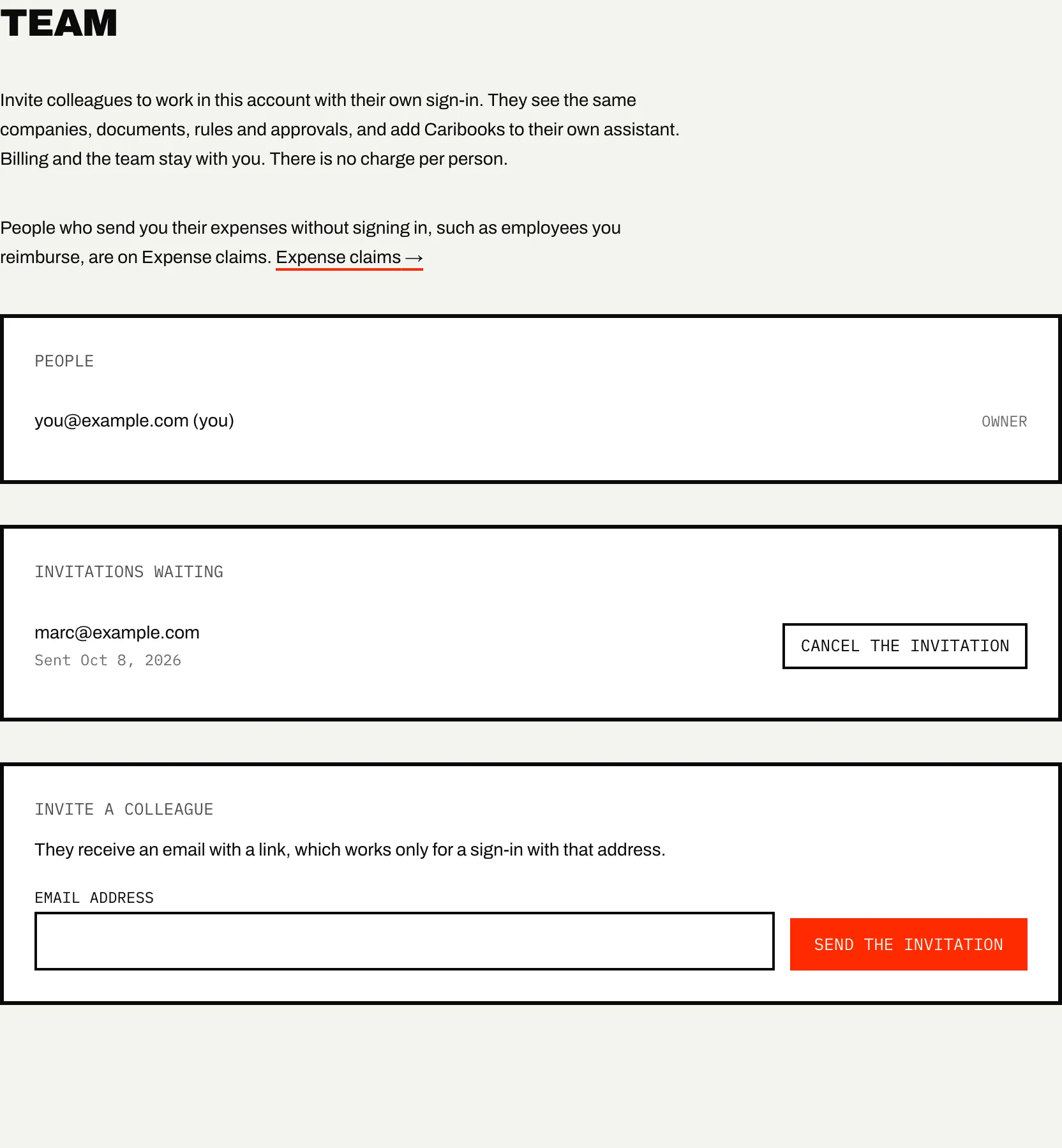
An account belongs to the person who opened it, its owner. On Settings → Team, the owner invites colleagues to work in it with their own sign-in. Members see the same companies, documents, rules and approvals, and add Caribooks to their own assistant. There is no charge per person.
Inviting a colleague
- Open Settings → Team.
- Under Invite a colleague, type their email address.
- Press Send the invitation.
They receive an email with an Accept the invitation button. The link works for 14 days, and only for a sign-in under the address it was sent to: someone who opens a forwarded link while signed in as someone else is asked to sign out and sign in with the invited address. Sending a new invitation to the same address replaces the old link.
Waiting invitations are listed under Invitations waiting, where Cancel the invitation withdraws one. An account can send 20 invitations in 24 hours.
Some invitations cannot be accepted:
- The person already works in another Caribooks account. They leave it first, under Settings → Team.
- The person's own Caribooks account already holds companies or documents. Accounts are never merged automatically; they write to support@caribooks.com and we sort it out with them.
What members can do
A member works in your account as you do. They can:
- ask their own assistant about every company in the account, within each company's access level;
- connect a QuickBooks company, as long as your plan has room for it;
- use the document box, approve or reject changes on Approvals, and manage loops and rules;
- connect their own mailbox on Vendors, and change or remove the mailboxes they connected;
- choose how often each company's email summary goes out, and stop it for themselves (see Email summary);
- share the account's referral link, whose earnings go to the account.
What only the owner can do
- Change the plan, cancel it, update the card or start a second trial. A member opening Settings → Billing sees the plan and "This account's billing is managed by" followed by your address.
- Switch a company between Read-only and Full access, or Disconnect it, on Settings → Companies. Members see who to ask instead.
- Make room in the plan for one more company. A member whose plan is full is asked to contact you.
- Invite, remove and answer requests to join.
- Remove a mailbox someone else connected.
When several people work in the account, Approvals shows who decided each change.
Removing a member
Next to the person, press Remove, then confirm. Their assistant loses access to your companies right away. Their sign-in still works, but it opens an empty account of their own.
A member can also leave: Leave this account at the bottom of the Team page. They and their assistant lose access at once.
Requests to join
A QuickBooks company can be connected to one Caribooks account only. When someone tries to connect a company that is already on your account, Caribooks stops them and shows the first letter and domain of your address. They can press Ask to join.
You then receive an email, and the request appears under Requests to join on the Team page, with the company they tried to connect:
- Add to the team makes them a member, with the same access as an invited colleague.
- Decline refuses. We tell them by email, without showing your full address.
If you do not know the person, decline. A request stays open for 14 days. As with invitations, someone whose own account already holds companies, documents or a team cannot be added; they are asked to write to support.
Colleagues who only send you their expenses, without signing in, are handled on Expense claims, not on the Team page.