A routine is a piece of bookkeeping work Caribooks repeats for a company: attaching receipts, entering supplier bills, recording payments, giving expenses their vendor and category, preparing overdue reminders, sending reports. Caribooks writes each routine; you switch it on and set it. Routines run only on companies with Autopilot. Switching a routine on or off and changing its settings needs Write on the company; someone at Read sees the routines and what they do (see Team).
The Routines page
At the top, We email you says how often your email summary comes, with Change to set it. Below it, the page lists every routine once per company:
- Receipts attaches receipts and paid invoices to their expenses.
- Supplier bills enters supplier invoices still to pay as bills, with the PDF attached.
- Payment notices records your customers' payments from their payment notices.
- Give a vendor to expenses gives a vendor to bank and card expenses that have none, read from the bank's text. You approve each vendor once for every expense with the same text.
- Move expenses to their account moves expenses already in QuickBooks, such as bank lines you added as Uncategorized Expense, to the right expense account. It can't see lines still waiting in QuickBooks' For review tab, and it leaves vendors to Give a vendor to expenses.
- Overdue invoice reminders prepares a reminder for each customer with an overdue invoice.
- Reports: one card for the reports Caribooks emails you.
A folded card says what the routine does. Its icon sits on an orange tile while the routine is on, and on a black tile while it is off.
Switch a routine on and set it
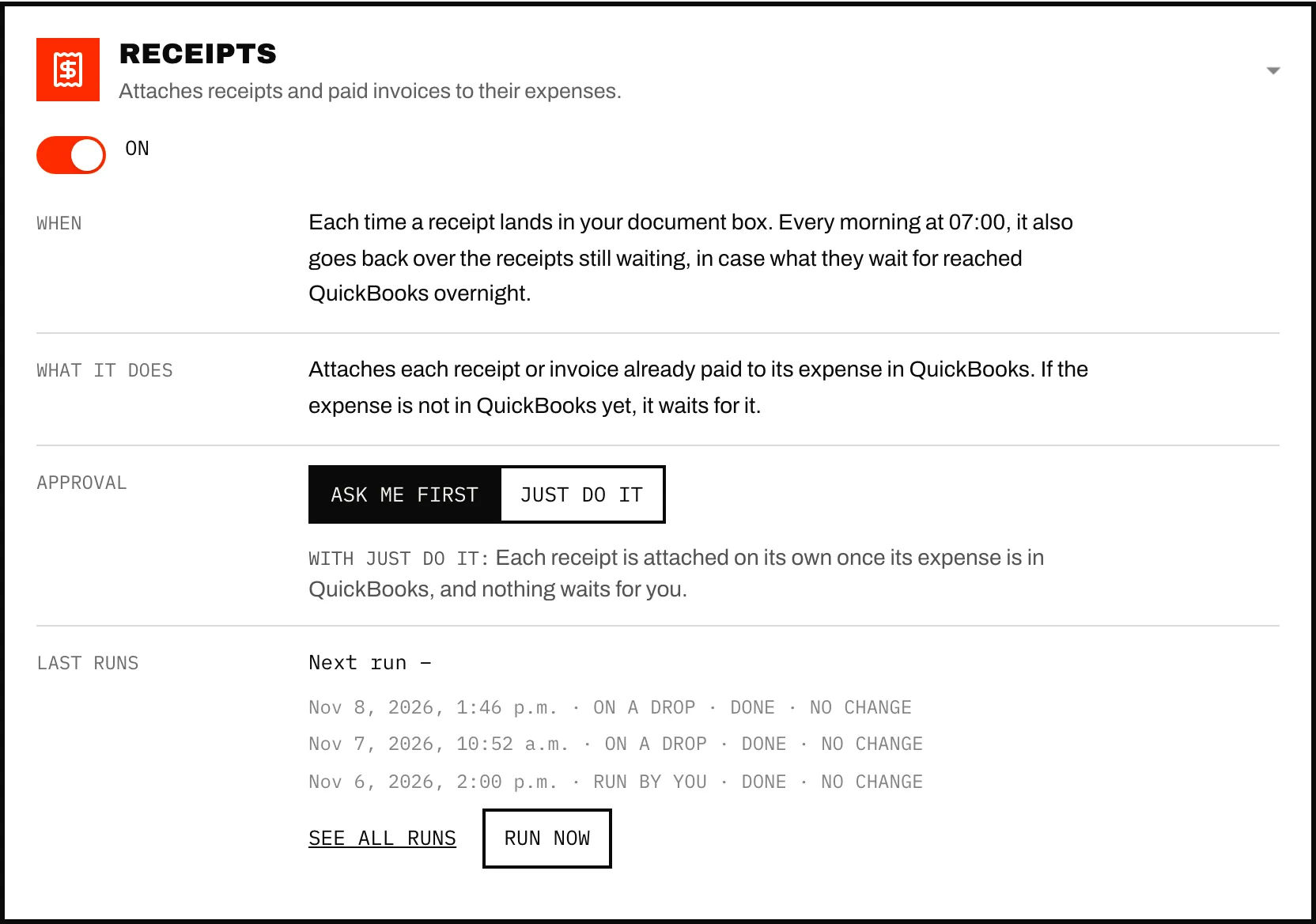
Open a card and turn on its switch. Turning a routine on needs Autopilot on the company; turning it off always works. The card then reads:
- When. The document routines work each time a document of theirs lands in your document box: a receipt for Receipts, a supplier invoice for Supplier bills, a payment notice for Payment notices. Every morning at 7:00 they also go back over the documents still waiting, in case what they wait for (an expense, an invoice) reached QuickBooks overnight. The others run on a schedule you pick: Every day, Every weekday, Every week on a day, or Every month on a day from the 1st to the 28th, at a time you choose, Eastern time. A change saves itself a moment later.
- Settings under When, depending on the routine. Give a vendor to expenses and Move expenses to their account take Accounts: All accounts, or only the bank and card accounts you pick. Move expenses to their account also takes Which expenses: Only Uncategorized and Ask My Accountant, or Every new expense. Overdue invoice reminders takes Overdue by at least 1, 15, 30 or 60 days.
- What it does, in Caribooks' words.
- Approval: the Ask me first / Just do it switch, with a line under it saying what Just do it would do for this routine.
- See all runs, once the routine has run, and Run now.
Ask me first or Just do it
Every routine starts on Ask me first: each change it prepares waits for you in Approvals. Four routines offer Just do it, which lets the routine make the sure changes itself:
- Receipts: each receipt is attached once its expense is in QuickBooks.
- Payment notices: a payment that pays one open invoice exactly is recorded. Split and partial payments still wait.
- Give a vendor to expenses and Move expenses to their account: what one of your rules covers. New vendors, unclear bank texts and expenses no rule covers still wait.
Supplier bills and Overdue invoice reminders always ask: a bill is never entered on its own and a reminder is never sent on its own. After three runs in a row where you approved everything and rejected nothing, the card offers Switch to Just do it. You can come back to Ask me first at any time.
Payment notices
When a customer sends a notice saying they paid you (a remittance advice, an avis de paiement), drop it in the document box. The routine finds the open invoices it pays and prepares the payment with the notice attached, always into Undeposited funds, the account QuickBooks keeps for money received but not yet in the bank. It never creates that account. When the transfer reaches QuickBooks' bank feed, match it to this payment there: that match is how Caribooks knows the money arrived.
A notice that matches no open invoice becomes a question. A payment still not deposited 10 days later becomes a question too, with three answers: It arrived: I'll match it in the bank feed, It never came: void the payment (the payment is then voided) or Not yet: ask me again in 10 days.
Reports
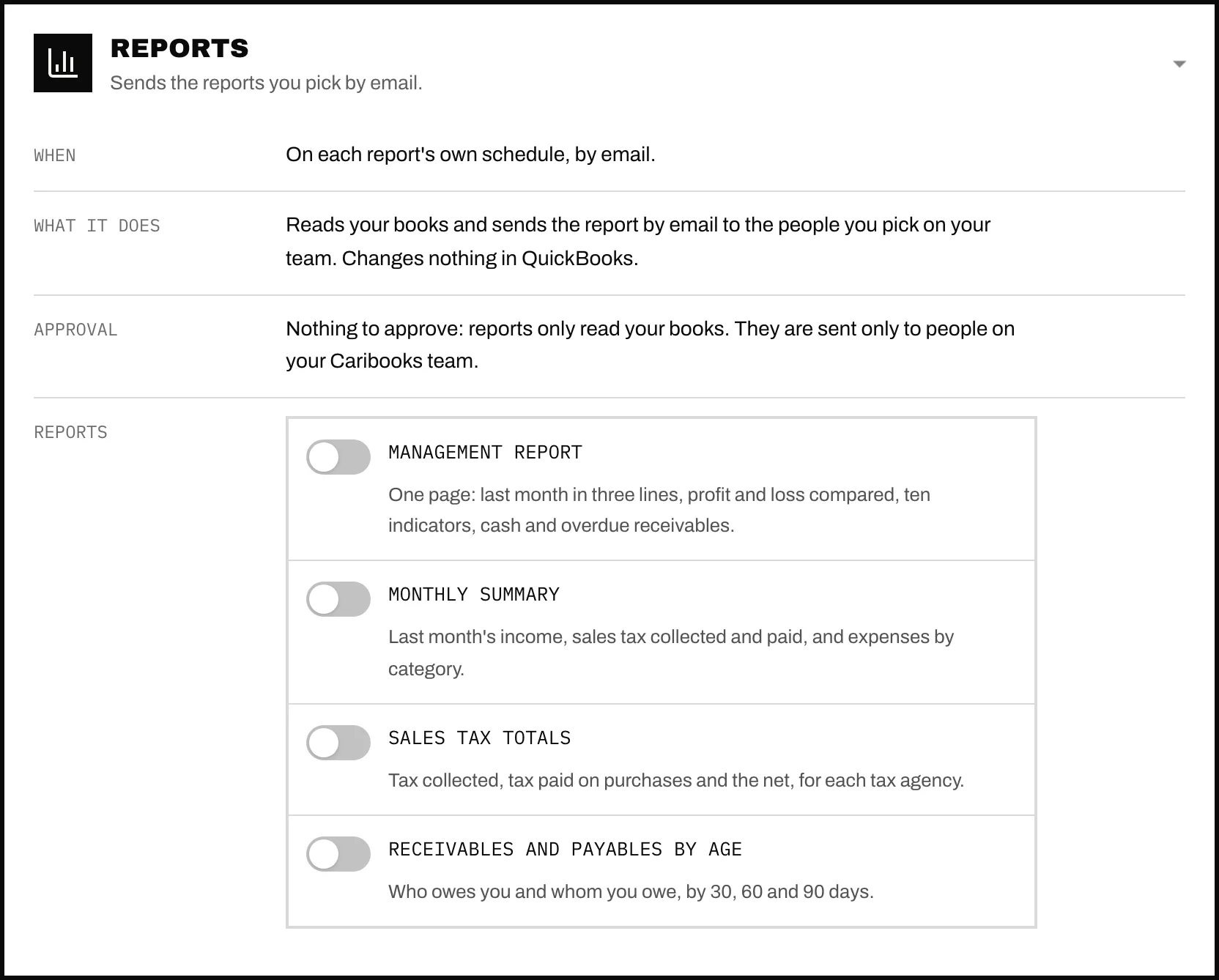
The Reports card holds four reports: Management report, Monthly summary, Sales tax totals and Receivables and payables by age. Turn on a report's switch and it is sent to you on its usual day: the 10th of each month for the Management report and Sales tax totals, the 15th for the Monthly summary, every Monday for Receivables and payables by age. A month's reports wait until the 10th because bank and card lines reach your books only once they are added from QuickBooks' For review tab. Then set its schedule and Sent to: the people on your team who reach this company. Sales tax totals also takes a Period: Last month, Last quarter or Last year.
When a bank or card account has nothing booked through the last day a report covers, the report opens by naming it with its last booked date: anything it had after that day and not yet added in QuickBooks is missing from the figures.
A report only reads your books: nothing to approve. It is emailed only to the people picked who are still on your team and still reach the company.
Runs
Run now starts a run, which takes a few minutes; while it runs, the routine's folded card says Running. See all runs lists every run: when it happened, what started it (Scheduled, On a drop or Run by you), how it ended and what it did, with an Outcome filter.
A run asks a question when the books do not tell it what to do. The question waits in Approvals until you answer it there or through your assistant, the books settle it, or you leave it. The document routines never ask about a document, except Payment notices as above.
Something else?
Caribooks only runs the routines on this page. For a one-off job or a question about your books, ask your assistant. For work you would like repeated, write it under Something else? and press Send to the Caribooks team: a person reads every message.
Routines from your assistant
Your assistant can set up a routine with create_task: it picks the one that matches your request (Receipts, Supplier bills, Payment notices, Give a vendor to expenses, Move expenses to their account or Overdue invoice reminders) and the settings you asked for, and tells you when none fits. Reports are picked on this page. A company has each routine once. Caribooks saves it off, and its start waits in Approvals as Start a routine; its card here says Prepared by your assistant: waiting for you in Approvals, with a link. Approve it there, or tell your assistant to start it (activate_loop). When you ask for the work now, the assistant can start it and run it at once. It can also list your routines (list_loops) and what they proposed (list_proposals), but approving a change stays in the portal.
Ask your assistant
- "Set up the Receipts routine for my company."
- "Categorize new expenses on my chequing account every weekday at 7."
- "Which of my routines are off?"