Caribooks reaches your books through Intuit's own authorization: you sign in to QuickBooks Online on Intuit's page and pick the company. Caribooks never sees your QuickBooks password. Each company you connect starts read-only.
Connect a company
- Open Settings → Companies and click Connect a company. On Getting started, the Connect to QuickBooks button does the same.
- Intuit's page opens. Sign in with your usual QuickBooks login.
- If your login can open several companies, Intuit lists them. Pick one and approve.
- You come back to the portal with a note that the company is connected.
Each round connects one company. Intuit shows its list only when your login can open more than one company; otherwise it goes straight back with the only one. If that company is already connected, the portal says so. To add a different company, sign out of QuickBooks, click Connect a company again and sign in as a user of that company.
Anyone on the team can connect a company. It joins the account and everyone on the team sees it.
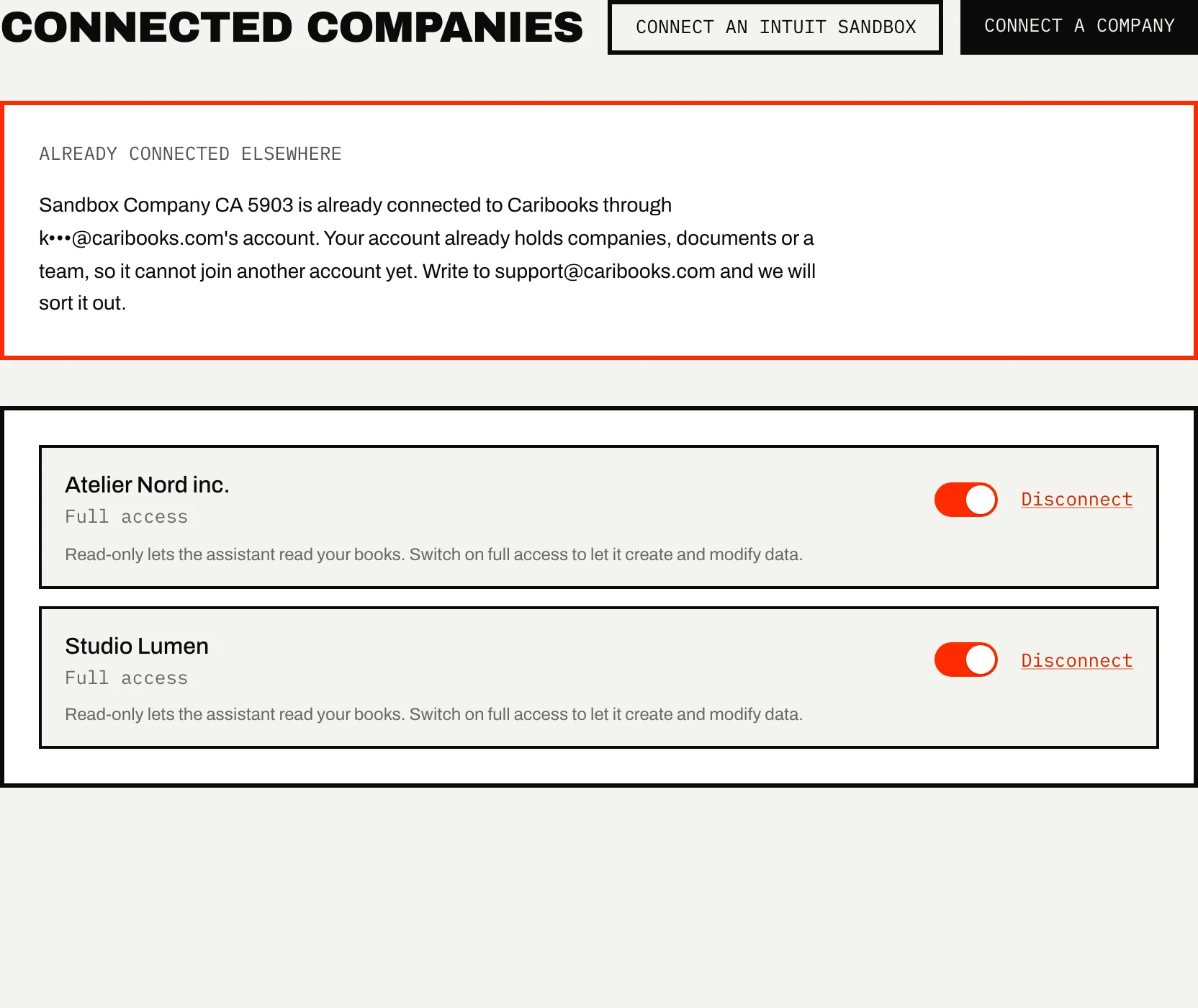
Read-only and full access
Every company starts Read-only. Your assistant can run reports, search and read records, and changes nothing.
Full access lets it also create, update, delete, void and send records. Only the account owner sees the switch on the company's card. Team members see a note naming the owner instead.
Even with full access, the assistant needs your explicit yes in the conversation before it deletes or voids a record. An email to a customer or vendor is never sent from the chat: it waits in Approvals until you click to send it. See Access and confirmations.
When Intuit asks you to reconnect
Intuit's access can expire, or someone can revoke it from QuickBooks. When that happens:
- The company's card says Reconnection required.
- Every portal page shows a banner saying the company needs to be reconnected before the assistant can read it.
- Your assistant gets a message asking you to reconnect the company at caribooks.com/portal.
Click Reconnect on the banner or on the card, sign in to Intuit and pick the same company. It keeps its access setting and its place on your plan, so reconnecting never asks you to add room, even when every place is in use. Anyone on the team can reconnect. No email goes out about this: the banner is where you see it.
Disconnect a company
The account owner can click Disconnect on the company's card. The confirmation says what goes with the company before anything happens. Once you confirm, Caribooks asks Intuit to revoke its access, and your assistant and the loops can no longer reach the company.
Disconnecting deletes what Caribooks keeps for that company:
- its loops and their run history;
- its changes in Approvals, waiting or decided;
- its Rules;
- its vendor settings and vendor portals on Vendors, the charges you marked No receipt, and what your mailboxes learned about its vendors;
- its Expense claims: the people, their links and their claims;
- its own receiving address and drop link, which stop working.
What stays: its documents remain in your document box, unsorted, and nothing changes in QuickBooks. Your plan stays as it is; disconnecting does not change your subscription.
Disconnecting does not restart your trial. The trial counts from the first time your account connected a company, and connecting the same company or another one later keeps that date.
To use the company again, connect it again. It comes back Read-only, with no loops or rules, and with a new receiving address and drop link.
If you only want to stop paying for a company for a while, turn it Off under Billing instead (see below). It stays connected.
How many companies your plan holds
The trial does not limit how many companies you connect. Once you subscribe, your plan has room for a set number of companies. A company turned off does not take a place.
When every place is in use, Connect a company opens Add a company before Intuit:
- The owner chooses Add on the connector or Add on Autopilot. Each option shows what it adds to the bill and the new total, before tax. The difference is prorated on your next invoice. Then QuickBooks opens so you can pick the company.
- A team member sees a note asking the owner to make room under Billing.
When your plan has a free Autopilot place, a newly connected company takes it. Otherwise it goes on the connector. Plans and prices are in Plans and billing.
A company already connected to another account
A QuickBooks company can be connected to one Caribooks account only. Connect one that another account holds and Caribooks only checks with Intuit that you can open it, keeping none of that access. Settings → Companies then shows an Already connected elsewhere card naming the other account by a masked email address.
Click Ask to join to ask that account's owner to add you to their team. They get an email and answer on their Team page. The request stays open 14 days, and you get their answer by email. If they add you, you keep your own sign-in and see the same companies and documents.
You cannot join while your own account already holds companies, documents or a team. In that case the card says so: write to support@caribooks.com and we will sort it out.
Off, Connector or Autopilot
Each connected company is on one of three settings, chosen under Billing:
- Connector: your assistant works on the company when you ask it to.
- Autopilot: the connector, plus loops that run on their own and propose changes for your approval.
- Off: the company stays connected and costs nothing, but your assistant and the loops cannot use it. Its documents still arrive in the document box and wait. Its card on Settings → Companies shows an Off tag.
With one company you pick Connector or Autopilot. With several, each company has its own Off, Connector and Autopilot buttons. Turning a company back on needs no new QuickBooks sign-in. See Plans and billing and Autopilot.
Ask your assistant
- "Which QuickBooks companies are connected, and what access does each one have?"
- "Show me the company information for Acme Inc."