Autopilot is the part of Caribooks that works when you are not asking. You describe a piece of recurring work in one sentence, Caribooks turns it into a loop, and the loop reads your books and documents on its schedule and proposes the changes. You decide what reaches QuickBooks.
Its pages sit under Autopilot in the portal's menu: Approvals, Loops, Rules, Vendors and Expense claims.
Which companies run on Autopilot
On Settings → Billing, each connected company is Off, Connector or Autopilot. Autopilot includes the connector. A company that is off stays connected and costs nothing, but neither your assistant nor your loops can use it.
- During the trial, every company you connect has Autopilot unless you turned it off. Subscribing before the trial ends keeps this until the trial's last day, whatever your plan.
- After the trial, a company's loops run only while it is on Autopilot and your subscription pays for every company on Autopilot. Bundles cover 1, 5, 10 or 25 companies; see the pricing page and Plans and billing.
- Writing a loop is free. On a company without Autopilot the loop is kept but cannot be switched on, and the Loops page says Autopilot is off for this company. Saving a rule needs Autopilot too; retiring one does not.
Get Autopilot going
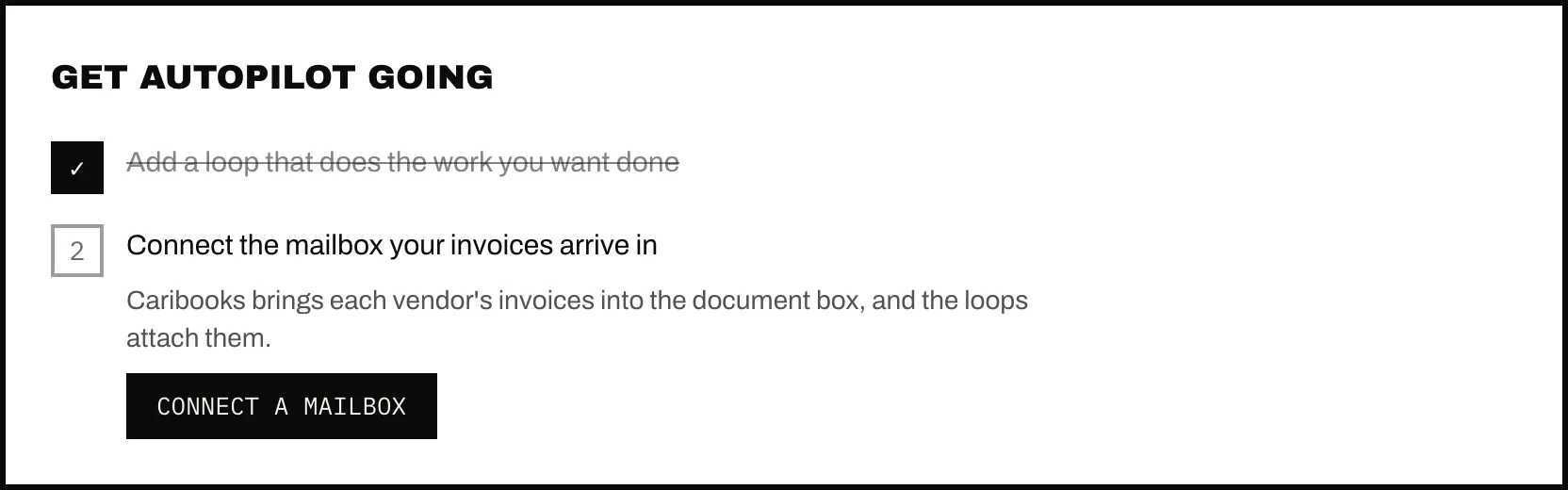
Until both steps are done, the Loops page opens with Get Autopilot going:
- Add a loop that does the work you want done. Write your own sentence or take one from the library.
- Connect the mailbox your invoices arrive in. Caribooks brings each vendor's invoices into the document box, and the loops attach them. Outlook (Microsoft 365) mailboxes connect today; Gmail is coming.
Preview: every new loop asks first
A new loop starts in preview: it changes nothing in QuickBooks on its own, and every change waits for you in Approvals. The Ask me before every change switch on its card is on.
After three runs in a row where you approved what it proposed and rejected nothing, the card asks Let this loop act on its own? Nothing changes until you press Let it act. Leaving preview is never automatic, and you can turn the switch back on at any time.
Out of preview, a loop makes the low-risk changes itself: attaching a document, setting a class or customer on a line, and moving an expense to another account when one of your rules covers that move. If such a change would do more than refile the lines, it waits for you.
By default, bills, journal entries, payments and rules wait for your approval. Emails, deletions and voids always wait. Each card's read-back lists what the loop does on its own and what it asks first, and every change it makes alone is listed in Approvals with its Undo.
What a run never does
- Send an email, delete or void anything, or put a rule in force without your click.
- Touch a document that belongs to another of your companies, or discard one.
- Change a company on read-only access (Access and confirmations).
- Propose again a change you rejected.
A run that reaches its cap of changes stops and shows Paused.
How a loop settles documents
A loop that works on the document box settles every document and asks you nothing about it. Filing a document changes nothing in QuickBooks, so a run does it even in preview. A document is:
- attached to the expense or bill it documents, never as a second copy on a transaction that already has one;
- carried by a new bill when it is an invoice still to pay and the loop enters bills (the bill waits in Approvals);
- waiting for its charge when it is paid but the card or bank charge is not in QuickBooks yet; later runs look again;
- not on your accounts when it is paid and every card and bank account in use is booked a week past its date without the charge; it stays in the box in case the charge shows up late;
- paid from a vendor credit, kept as a reference;
- already in the books, archived as a copy you can bring back from the Documents page;
- a statement, kept by month, or a reference, such as a contract.
Before a bill reaches you, Caribooks looks for it in the books (same vendor and invoice number, or the same total within a week) and drops it if it is there. It proposes no bill for a vendor the company has only paid at purchase over the past year, unless a rule about that vendor says otherwise. A bill always names its vendor: one already in your books, or a new one under the invoice's name, created when you approve the bill. No bill is proposed for a name that belongs to a customer or an employee, since QuickBooks gives each name to only one of them. See Document box.
The email summary
When something needs you, Caribooks emails a summary per company: changes to approve, ones that could not be made, a run's questions, and one line on what your loops did on their own. Its button opens Approvals. See Email summary.
Which AI reads your books
Loops, and the step that turns your sentence into a loop, run on an open model through hosts that keep no data and train on none. Your assistant (Claude, ChatGPT or Copilot) plays no part in them. The model receives the transactions and documents a run examines, your rules and your instructions. The privacy page names the model and every host.
Ask your assistant
- "Every Monday, attach the receipts in my document box to the expenses they document."
- "What are my loops waiting on me for?"
- "Remember that Uber rides go to Travel, not Meals."