Approvals is where you decide what reaches QuickBooks: changes your loops propose, emails your assistant asked to send, rules, loops waiting to start and your team's expense claims. Below them, Already decided keeps every settled change, with its Undo.
The number beside Approvals in the menu counts what waits for you, expense claims included, for the company shown in the Company menu. Pick All companies to see everything.
What waits for you
A proposal is one change a loop wants to make, with a one-line summary and the evidence behind it. Its label says what kind of change it is:
- Attach a document
- Set a class or customer
- Move an expense
- Enter a bill
- Journal entry
- Record a payment
- Send a document
- Delete or void
- New rule
- Start a loop
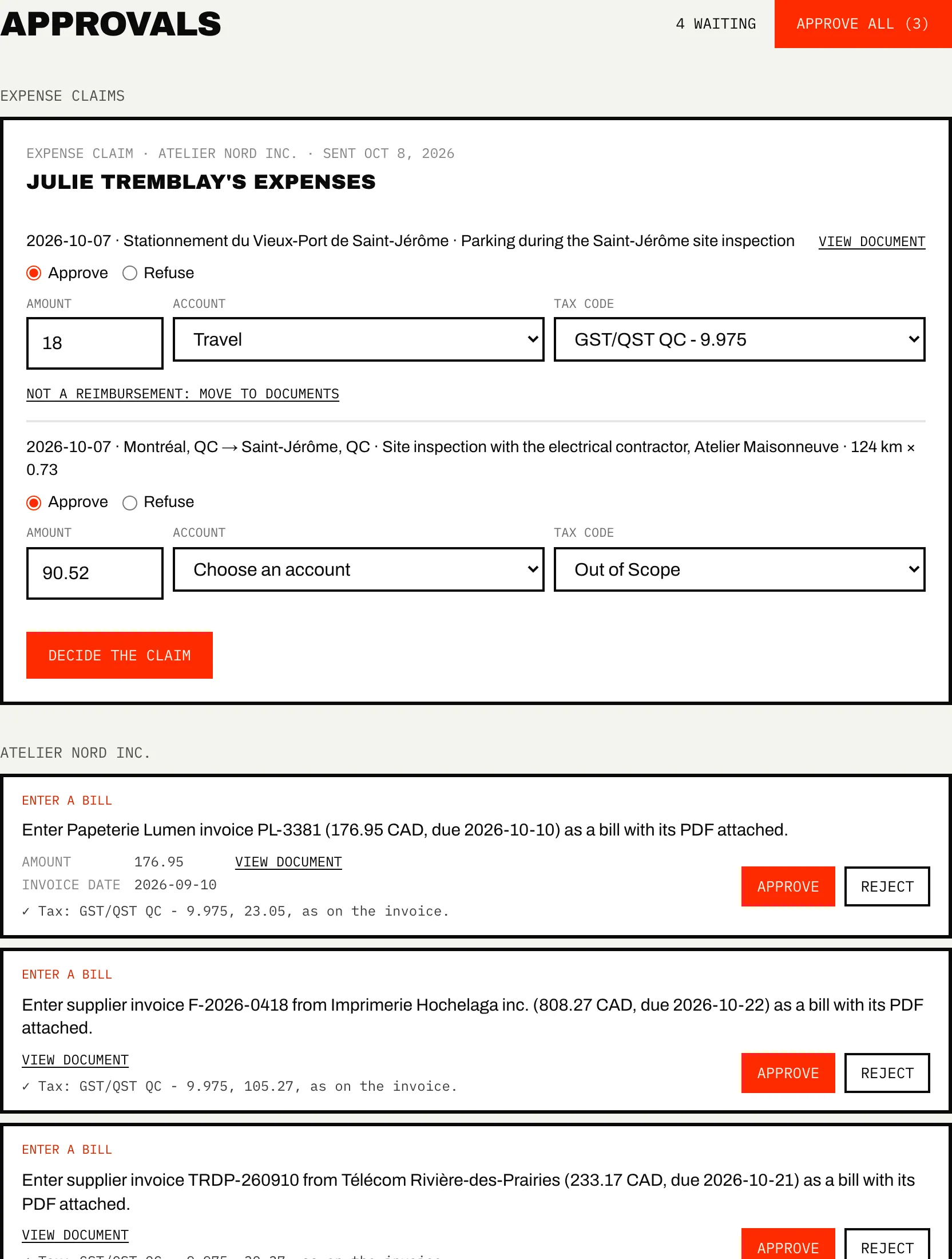
The list is grouped by company, with New rule and Start a loop first under How work is done.
A card can show:
- the document it rests on, with View document, so you read what the run read;
- for a charge in another currency, an exchange-rate line against the Bank of Canada rate that day, marked to check when it is outside what a card usually adds;
- for a bill, the tax code chosen from your company's own codes, marked to check when none matches the invoice's tax;
- for a bill from a vendor your books do not have yet, a New vendor line with its name: approving the bill adds that vendor to QuickBooks.
Emails never leave from a chat. When you ask your assistant to send an invoice, an estimate or a receipt, the send waits here as Send a document until you approve it.
Approve, reject, undo
Press Approve and the card folds to one line: Approved. Writing it to QuickBooks…, then Approved. Written to QuickBooks. If QuickBooks refuses the change, the line says why, and the change later shows under Could not be applied with a Dismiss button.
Press Reject and Caribooks asks Why not? (optional). Your loops read the reason on their next run, and may offer it back to you as a rule. A loop never proposes again a change you rejected.
Rejecting Enter a bill for an invoice tells Caribooks the invoice was already paid: the document goes back to waiting for its card or bank charge.
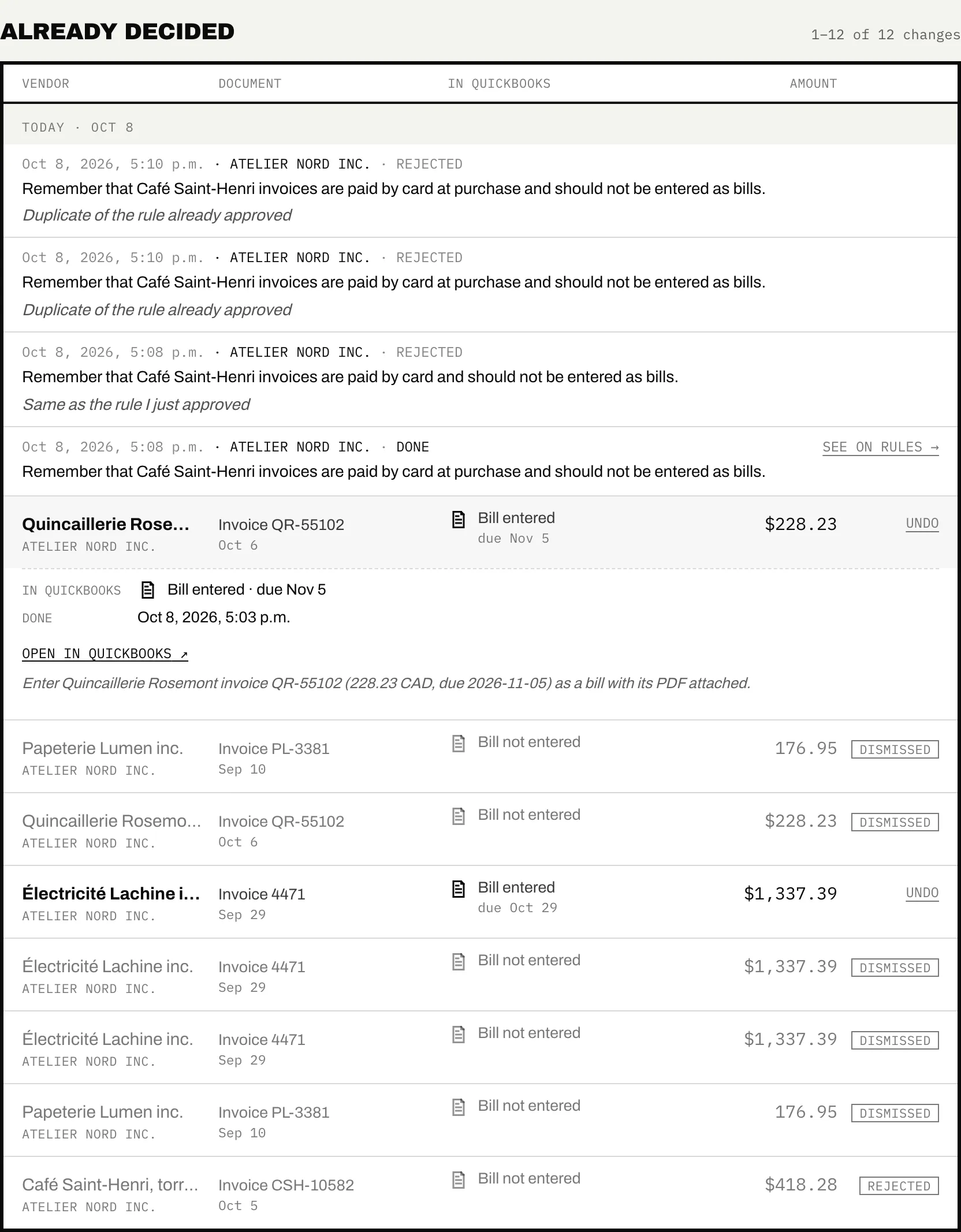
Undo sits on each applied change under Already decided:
- an attached document is removed from the transaction;
- an edited record is put back as it was just before the change;
- a created record is deleted, with the document attached to it.
Sent emails, deletions, voids, rules and loop starts have no Undo. Retire a rule on Rules and pause a loop on Loops.
Approve all
With two or more changes waiting, Approve all (N) approves them in one go after a confirmation. They leave the list at once, and a line counts the ones still being written to QuickBooks. Any that QuickBooks refuses come back under Could not be applied.
Approve all leaves out emails, deletions and voids, new rules and loop starts. The confirmation tells you how many still wait for their own approval.
What happens when you approve
- Each change is written once. A second tap, or a second person approving at the same moment, changes nothing.
- For an edit, Caribooks reads the record as QuickBooks holds it now and writes on top of that version.
- A bill carries its invoice: the document is attached as soon as the bill exists.
- A bill for a vendor your books do not have yet creates that vendor first, under the name on the invoice, unless a vendor of that name exists by then. Undo deletes the bill and leaves the vendor in QuickBooks.
- If the write is cut off partway, Caribooks checks QuickBooks before trying again, so the change does not go in twice. When it cannot tell, the change fails with "May already be in QuickBooks; check before retrying."
- Every change to the books needs full access on the company. On a read-only company the change fails and says so.
Duplicate bills are caught earlier: when a run proposes one, Caribooks looks for that invoice in the books and drops the proposal if it is there. See Autopilot.
Rules and loops waiting
A rule your assistant heard in a chat, or one a loop noticed, waits here as New rule, with its type, who said it, and its When and Then halves. A rule a loop drew from one of your refusals also names what it rests on: the Document by its vendor and number (or its file name when it has not been read yet), and the Refused change by its sentence. Approving it puts it in force on Rules. Rejecting it saves nothing.
A loop your assistant drafted waits as Start a loop, with your sentence and what the loop does. Edit takes you to the loop to change the sentence first. Approving starts it, on a company with Autopilot. Rejecting deletes the draft.
Once approved, the row under Already decided links to See on Rules or See the loop.
Already decided
Settled changes are listed by day, newest first, 25 to a page, in columns: Vendor, Document, In QuickBooks and Amount. Changes a loop made on its own are here too, as Done. A rejected, dismissed, undone or failed change carries its status, and a bill it would have entered reads Bill not entered. Open a row for who decided and when, your reason, the document or Open in QuickBooks, and the run's sentence about the change.
Expense claims
Claims your team sends wait at the top of the page under Expense claims, where you set accounts and tax codes and approve or refuse them. See Expense claims.
Ask your assistant
Your assistant can show what waits, but it cannot approve or reject a change. That click stays in the portal.
- "What's waiting for my approval in Caribooks?"
- "What did my loops change this week?"
- "Send invoice 1042 to the customer." (It then waits here.)