The document box is where your receipts, supplier invoices and statements wait for your books. It is the Documents page of the portal and comes with every plan. Your assistant can read it and attach its files in QuickBooks, and so can Autopilot.
Putting documents in
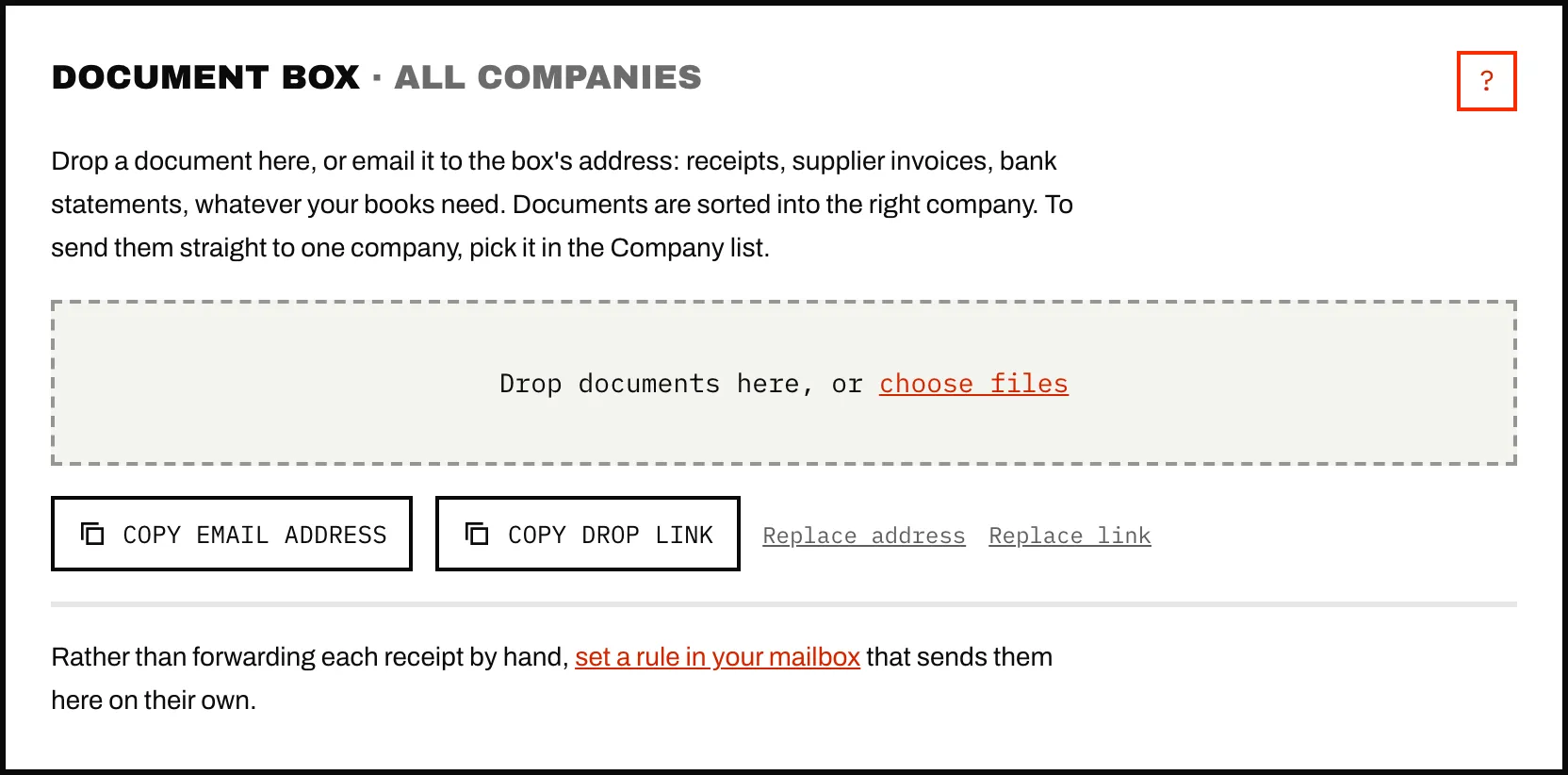
- Drop files anywhere on the page, or click choose files. On a phone, Take a photo or choose a file opens the camera.
- Email or forward them to the box's address, or send its drop link to whoever holds the receipts. See Receiving addresses and drop links.
- With Autopilot, the Vendors page brings in invoices from your mailbox and vendor portals.
The box takes PDFs, images (JPEG, PNG, GIF, WebP, TIFF, HEIC), Word and Excel files and CSV, up to 50 MB each. A file sent twice is kept once, and the second upload shows Already in the box.
What happens when a file lands
- Caribooks reads it once: vendor, date, type, number, total and currency, taxes, items bought. Meanwhile the row says Being read. Then search finds the document by any of these, or by any word on it.
- It is sorted to a company, if your account has more than one. A file that came through a company's own address or drop link already belongs to that company. Any other file is checked against your routing rules, then against each company's name, address and tax numbers in QuickBooks when the document says who it is billed to, then by an AI reading. A file none of these settles stays unsorted: a document filed under the wrong company does more harm than one that waits.
- It waits to be attached. Nothing reaches QuickBooks on its own.
When files have no company, the page says how many, and your assistant and Autopilot leave them alone. Open one, pick its company under Company and click Save. If every document from that sender has gone to the same company, Caribooks saves a routing rule and sorts the sender's next file itself. A supplier that bills several of your companies never gets one.
A file the AI is sure is no document at all (a logo, an email banner) is set aside as Filed: not a document.
The tabs: who acts next
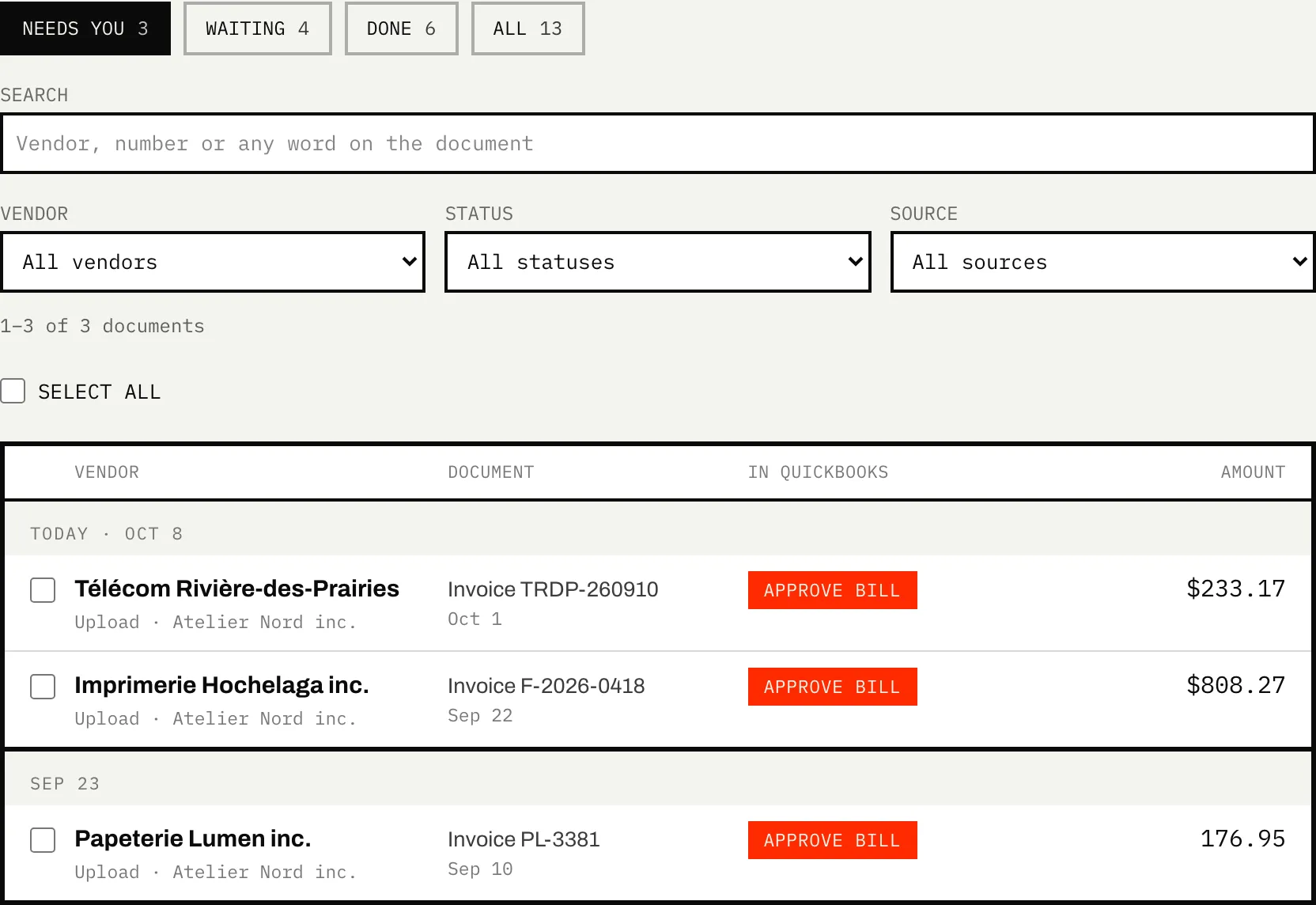
- Needs you: an attachment or a bill made from this document waits for you in Approvals. The status links to it, and the page opens on this tab whenever it holds anything.
- Waiting: being read, not looked at yet, sitting in your box, or waiting for its charge to reach your books.
- Done: attached to a transaction, already in the books, or filed as a statement or for reference.
- All: everything.
Filters narrow the list by Vendor, Status and Source (Email, Mailbox, Upload, Drop link, Vendor portal). An invoice and its receipt for the same charge (same vendor, date, total and currency) share one row; the second is listed under it as a copy.
Document types
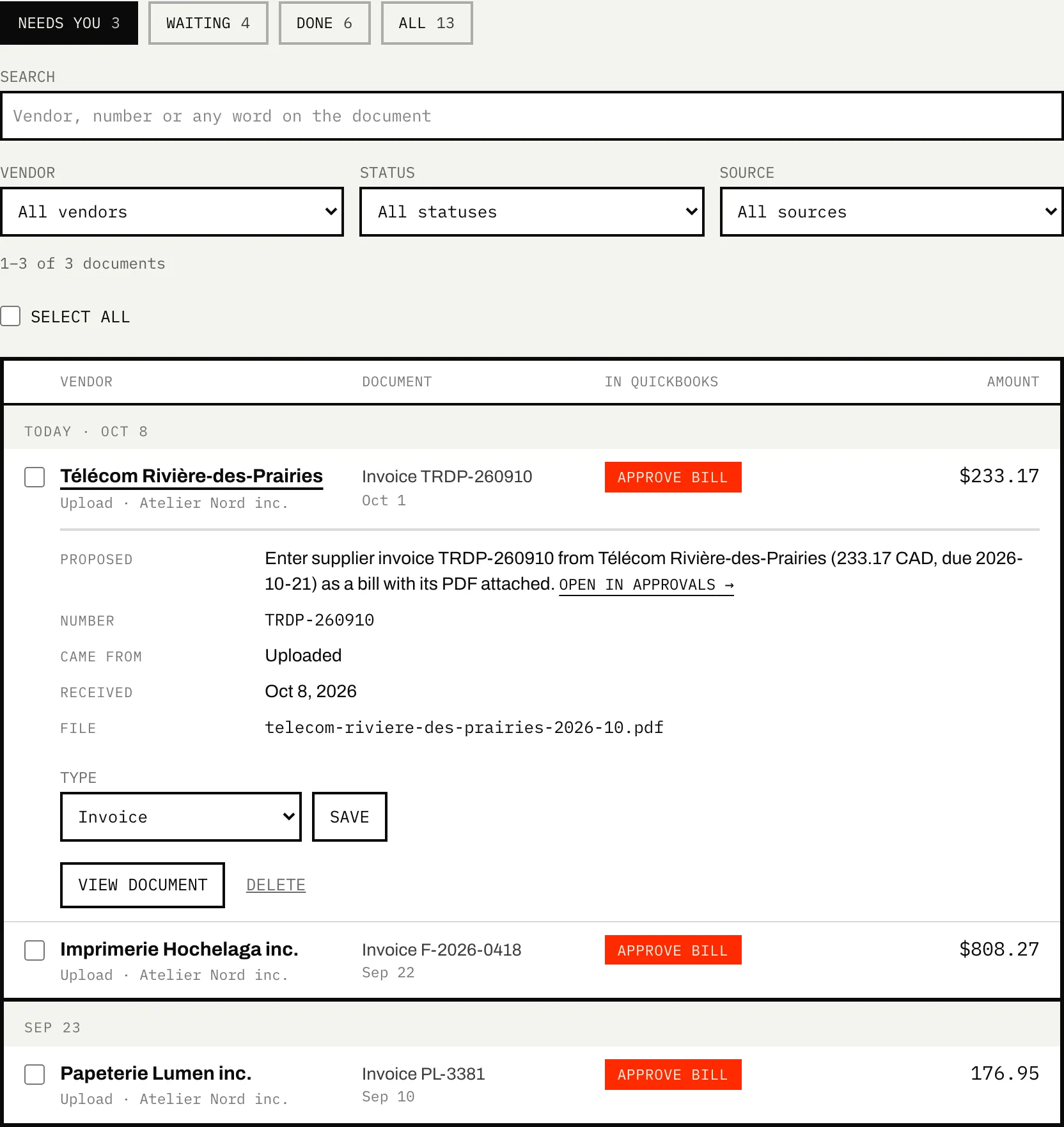
Each document is a Receipt, Invoice, Statement, Credit note or Other. The reader sets the type. To correct it, open the row, choose under Type and click Save; the reader never overwrites your choice. A document filed as a statement or for reference that you retype as a receipt, invoice or credit note goes back to the pile, and its company's loop gets another chance to attach it.
Who attaches documents in QuickBooks
Nothing is attached without one of these:
- your assistant, when you ask. It uses
attach_fileto put your original file on the expense or bill, which needs full access on that company (see Access and confirmations); - an Autopilot loop such as Receipts and invoices, which runs every morning and a few minutes after a file lands. Each attachment or bill it proposes waits for you in Approvals. Loops explains what it does with each kind of document.
The What happens to these files panel at the top of the page says which applies to each company. Where Autopilot is on but no loop attaches documents, it offers to add one.
Moving and deleting
- To move documents to another company, tick them (Select all takes every document the filters match, across all pages), choose the company under Move to… and click Move. Only waiting documents move. A filed one stays with the company that recorded it.
- Delete, on a row or a selection, removes the file at once. Your assistant will not see it again.
- A document a mailbox found for a vendor also offers Not {vendor}'s invoice, which deletes it and stops that message from being taken again.
How long files are kept
- A file stays until you delete it. Once a receipt or invoice is attached to a QuickBooks transaction, the file lives on that transaction and the box's copy is removed. The row stays, with Open in QuickBooks.
- Statements and reference documents keep their file after filing.
- A document marked Already in the books is a copy of one QuickBooks already has. The copy is deleted after 30 days and the row stays, so the same file is not taken in twice. Until then, Undo puts it back in the pile, and from then on only you can archive it.
- An emailed attachment over 50 MB is not kept. Its row says Couldn't keep: file over 50 MB, so you know to add it another way.
Ask your assistant
- "What's waiting in my Caribooks document box?"
- "Attach the receipts from my Caribooks document box to their expenses."