A Caribooks account is your access to the portal, and it is the account your assistant connects to. There is no password: you sign in with a link or a code sent by email, or with Google or Microsoft.
Create an account
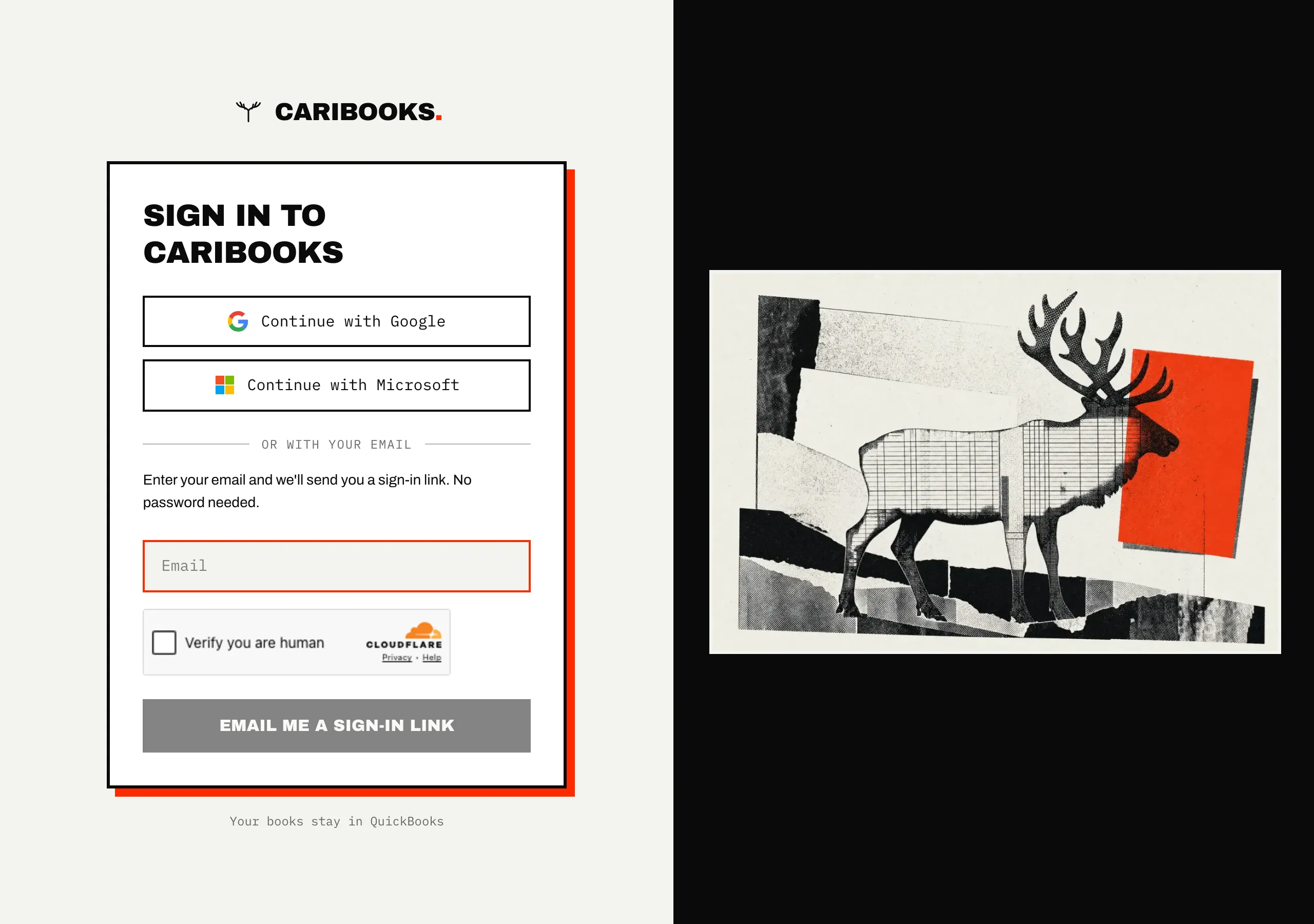
There is no separate sign-up step. Signing in with an address that has no account yet creates one. Go to caribooks.com/portal and it sends you to the sign-in page. When you arrive from one of the site's sign-up buttons, the same form is titled Create your Caribooks account.
Creating an account costs nothing and starts no clock. The trial starts when you connect your first QuickBooks company. See How Caribooks works.
Sign in with Google or Microsoft
Click Continue with Google or Continue with Microsoft and approve the sign-in on their page. You come back to Caribooks signed in.
Sign in with an email link
- Enter your email address.
- A human check from Cloudflare runs under the field. Most of the time it passes on its own. Sometimes it asks for a click.
- Click Email me a sign-in link. The page changes to Link sent!.
- Open the email. It holds a link and a code.
Then either:
- Click the link. It opens a Caribooks page with a Continue button. Click it to finish signing in. The extra click is there because many mail security filters open every link in a message before you do. The link is only used when you click Continue, so a filter cannot use it up. The link works on any device, not only the one where you asked for it.
- Type the code. Back on the Link sent! screen, enter the 8-digit code from the email and click Sign in with the code. This is handy when the email is on your phone and the portal is on your computer.
If the code is wrong or has expired, the page says so and keeps your address, so you can try again. If a link no longer works, the sign-in page says so: enter your address to get a new one. Resend the link takes you back to the form to send another email.
No email? Check your spam folder.
Signing up from your assistant
You can add Caribooks to Claude, ChatGPT or Copilot before you have an account. When the assistant sends you to Caribooks, the sign-in page is titled Connect your assistant to Caribooks. Continuing creates your account.
Once you are signed in, Caribooks asks you to authorize the assistant. Click Allow. See Add Caribooks to your assistant for that screen.
That authorization request expires after about ten minutes. If signing in took longer, the page says the request has expired. Go back to your assistant and connect Caribooks again. You are signed in by then, so it takes one click.
Your assistant can't read any books yet at this point. Until you connect a company, it answers that no QuickBooks company is connected and points you to caribooks.com/portal. See Connect QuickBooks.
Join a team by invitation
When an account owner invites you to their team, you get an email with a link. The invitation works for 14 days.
- Open the link. The page says who invited you.
- If you are signed out, click Sign in as [your address] and sign in with that exact address. The page brings you back to the invitation.
- Click Join [their address]'s account.
You then land on Settings → AI assistant to add Caribooks to your own assistant. You see the same companies, documents and approvals as the rest of the team, under your own sign-in. Nothing is billed to you: the subscription stays with the owner.
The invitation is refused when:
- You are signed in with a different address. Sign out on that page, then sign in with the invited address.
- Your own Caribooks account already holds companies or documents. Write to support@caribooks.com and we will sort it out.
- You already work in another Caribooks account. Leave it first, under Settings → Team.
- The invitation was used, cancelled or replaced by a newer one. Ask for a new one.
More on teams in Team.
Sign out
Sign out is at the top right of every portal page, or in the Menu on a phone. It ends your session in this browser only. Your other browsers stay signed in, and your assistants stay connected and keep working. Signing out never disconnects Claude, ChatGPT or Copilot.
Language
The portal opens in the language you signed in from. Switch between English and French with the language switcher at the top of the portal (in the Menu on a phone).