A prompt is a request written out in full: what to pull from QuickBooks, what to check and how to present the result. You copy it into your assistant, change what you need and send it. Each prompt asks only for what the Caribooks connector's tools can read or do, so it works the same in Claude, ChatGPT and Microsoft Copilot. Prompts are included in every plan.
Where to find them
In the portal, open Prompts in the sidebar. The same prompts are on the public Prompts page, which anyone can read.
Use a prompt
- Click Copy above the prompt.
- Paste it into a conversation where the Caribooks connector is on.
- Check the highlighted parts (company, month, thresholds), change anything you like, then send.
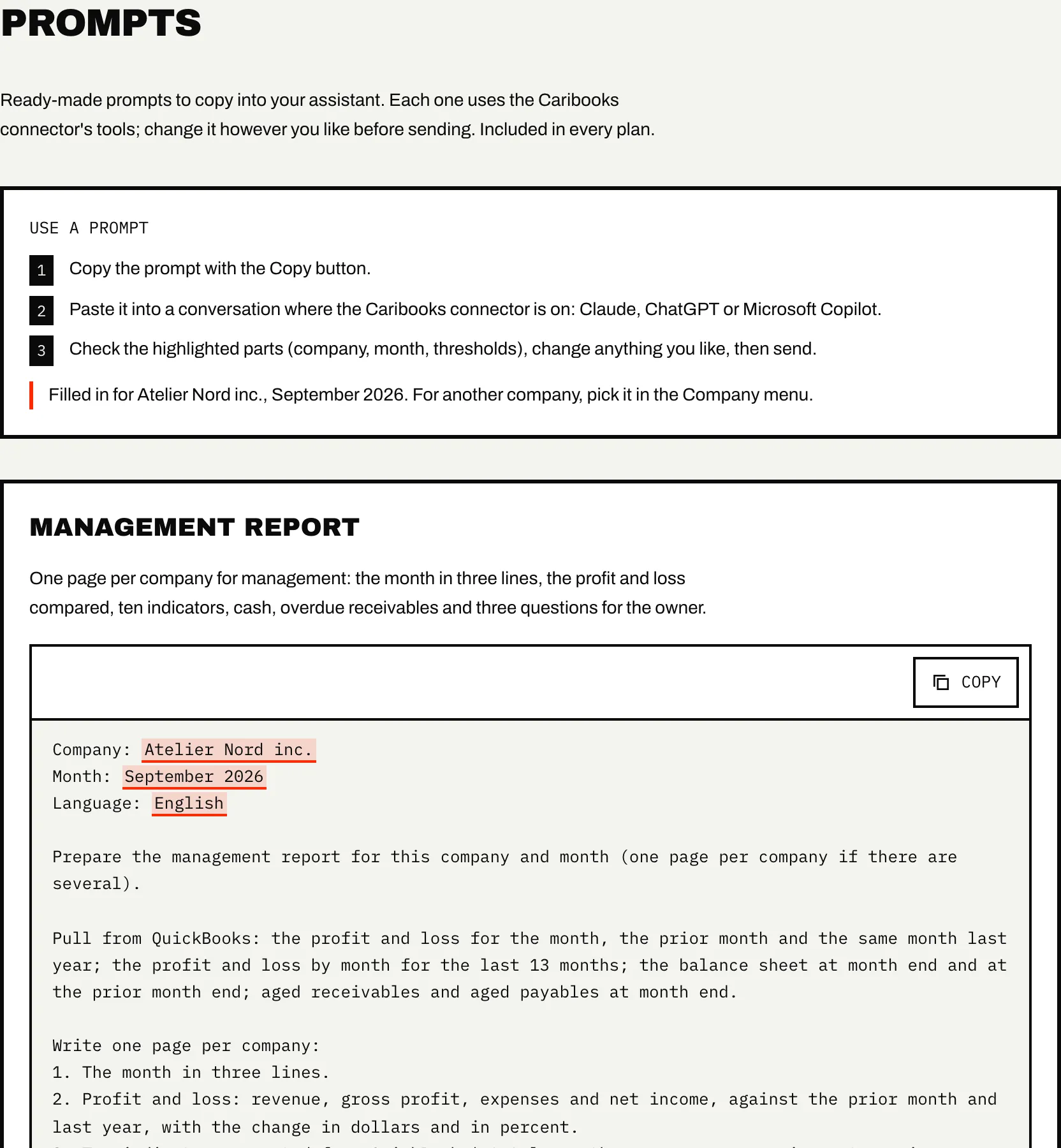
In the portal, each prompt comes filled in for the company picked in the Company menu and for last month, named in full ("September 2026"), and the management report is written in the portal's language. With All companies picked and several companies connected, a prompt asks for each of your connected companies, one page or checklist per company. On the public page, prompts ask for each connected company and last month. Thresholds start at 20% and $500 for the month-end close and 30 days for overdue invoices.
The prompts
Management report. One page per company: the month in three lines, the profit and loss against the prior month and the same month last year, ten indicators computed from QuickBooks' totals as they are (margins, growth, cash, months of cash, days to collect and to pay, current ratio, receivables over 60 days), the largest overdue invoices, what moved, and three questions for the owner. It reclassifies no account. Once the page reads the way you want, ask for it as a PDF or Word file.
Month-end close. A ten-point checklist before closing a month: uncategorized and suspense accounts, expenses with no receipt, likely duplicates, unapplied payments and credits, undeposited funds, recurring transactions that did not run, journal entries, lines that moved past your threshold, entries changed after month end, old receivables and payables, and transactions not yet reconciled. It ends with numbered questions for the owner. Bank reconciliation stays a QuickBooks screen.
Payables run. Bills due in the next 14 and 30 days against each bank account's balance, bills that look wrong, bills with no document, and a proposed payment batch. Nothing is recorded until you approve each line, and recording a bill payment moves no money: you still pay at the bank.
Missing receipts. The month's expenses with no receipt, matched against the files in your document box and your mailbox when one is connected in the conversation, then a list of what is still missing, ready to send to whoever paid.
Overdue invoices. Customer invoices past due, grouped by customer, with a reminder email drafted for each one. Nothing is sent: you read the drafts and send them from your own email.
When it should run on its own
A prompt runs when you send it. Three of them have an Autopilot loop that does the same work on a schedule, and their cards link to it: the month-end close (the Month-end close loop, every month), missing receipts (Receipts and invoices, every day and a few minutes after each drop) and overdue invoices (Overdue invoice reminders, every Monday, for you to approve). See Loops.
Make it your own
A prompt is plain text, so change it to fit how you work: add a budget comparison, drop a section, ask for the layout you already send clients. When a version works, save it somewhere you can copy it from next month.
What a prompt needs from Caribooks
A connected company is enough for the management report, the month-end close and overdue invoices, read-only included. Recording payments in the payables run and attaching receipts need full access, and the assistant asks before each change. See Access and confirmations.