A rule is one thing you have told Caribooks about how a company's books are kept: "Uber rides go to Travel, not Meals." Every loop reads the active rules of the company it works on, and your assistant receives them too, so a correction is said once. The Rules page, under Autopilot, lists them company by company.
Kinds of rule
When you add a rule, you pick its Type:
- Categorization: which account, class or customer something goes to.
- Vendor fact: something true about a vendor, such as how you pay it.
- Preference: how you like things done.
- Procedure: a step your bookkeeping follows.
A rule can also carry a structured half, shown as When (what it applies to, such as "payee contains: Bell") and Then (what follows, such as an account). Rules a loop proposes usually have both.
The list may also show Document routing rules. Caribooks saves one when you move a vendor's document to a company on the Documents page and that vendor has only ever billed that company. It says only which company that sender's documents belong to, and never decides a change to the books.
Add a rule
- In the company's section, write the rule under Add a rule.
- Choose its Type.
- Press Save rule.
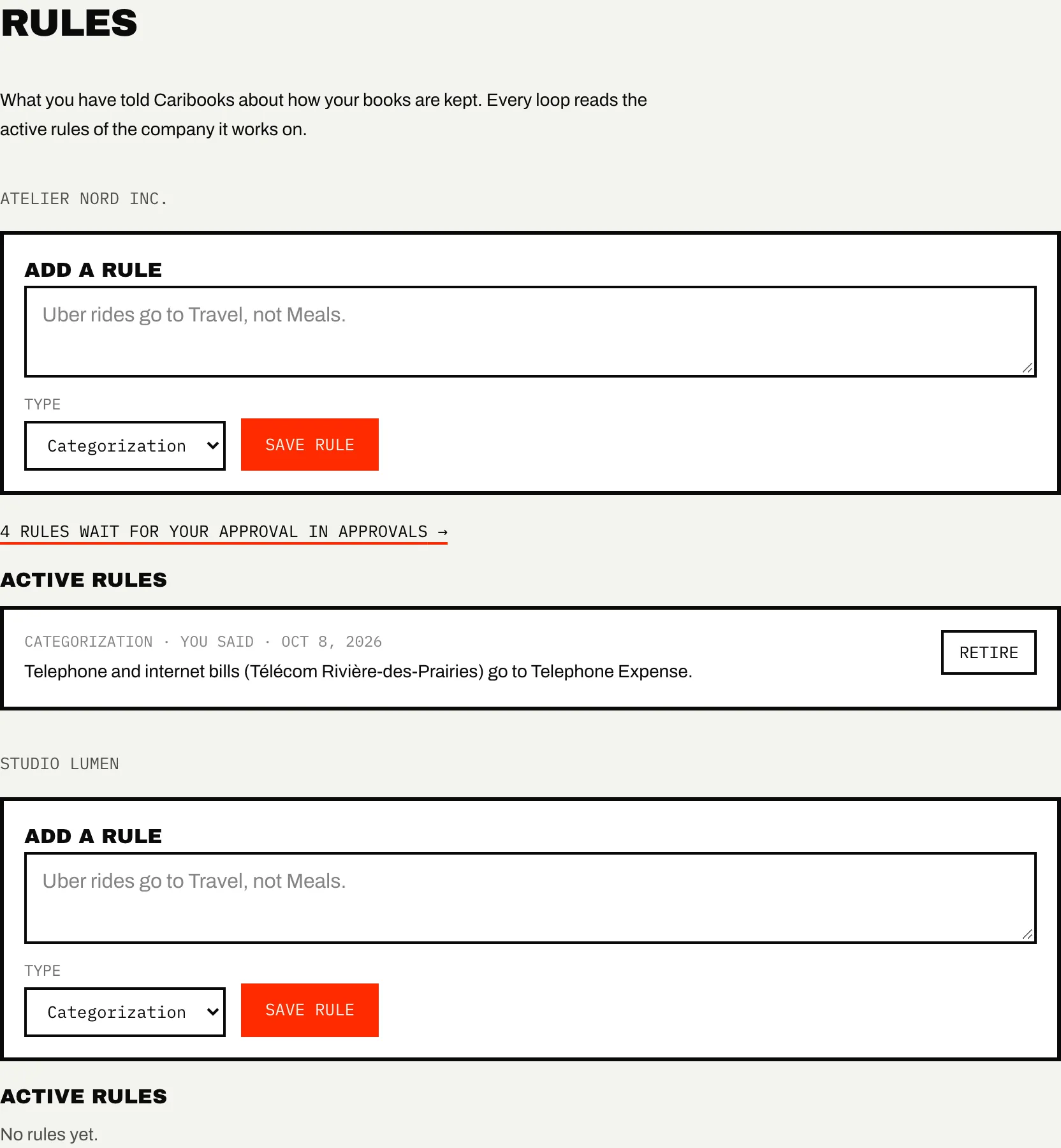
A rule you write here is in force at once. It shows under Active rules with You said and the date. A new rule with the same type and the same When, or the same wording when it has no When, replaces the old one.
Rules from a chat or a loop
A rule never goes into force from a chat or a run on its own:
- When you tell your assistant to remember something, it saves the rule with
remember_rule, and the rule waits in Approvals as New rule. Your assistant tells you so. - A loop may notice a pattern, or read the reason you gave when rejecting a change, and propose a rule. It also waits in Approvals.
The Rules page shows how many rules wait, with a link to Approvals. Approve one there and it becomes active; reject it and nothing is saved. A rule you already rejected is not saved again from a chat.
A rejected change gives at most one rule. Once a loop has proposed a rule from your reason, no later run proposes another from it, whether you approved that rule, rejected it or have not answered yet. A loop also proposes no rule for a vendor or a memo that a rule waiting in Approvals already covers, and none that an active rule already says.
Saving a rule, here or from a chat, needs Autopilot on the company. Without it, the page says Rules are part of Autopilot, which is off for this company, and offers Turn on Autopilot. You can still retire the rules already there.
Retire a rule
Press Retire on an active rule. It stops applying to every run from then on and leaves the list. Your assistant can retire one too, with retire_rule. A rule still waiting in Approvals is not retired: you reject it there.
What a rule can and cannot do
Rules are bookkeeping data that runs read. A run treats each rule as a fact about your books and puts your rules ahead of its own judgment. Your own request, your access settings and your confirmations still come first. A rule never:
- changes a company's access level, from read-only to full access or back;
- skips a confirmation, such as the one a deletion needs;
- turns on anything your plan does not include;
- lets a run send an email or delete a record without your approval.
What a rule does unlock:
- A loop out of preview may move an expense to another account on its own only when an active rule covers that move.
- A loop does not propose a bill for a vendor the company has always paid at purchase, unless a rule about that vendor says to enter its bills.
Runs read the active rules oldest first, up to a fixed length. Short, specific rules work best.
Ask your assistant
- "Remember that Hydro-Québec goes to Utilities, not Rent."
- "What rules do you have for this company?"
- "Retire the rule about Uber rides."