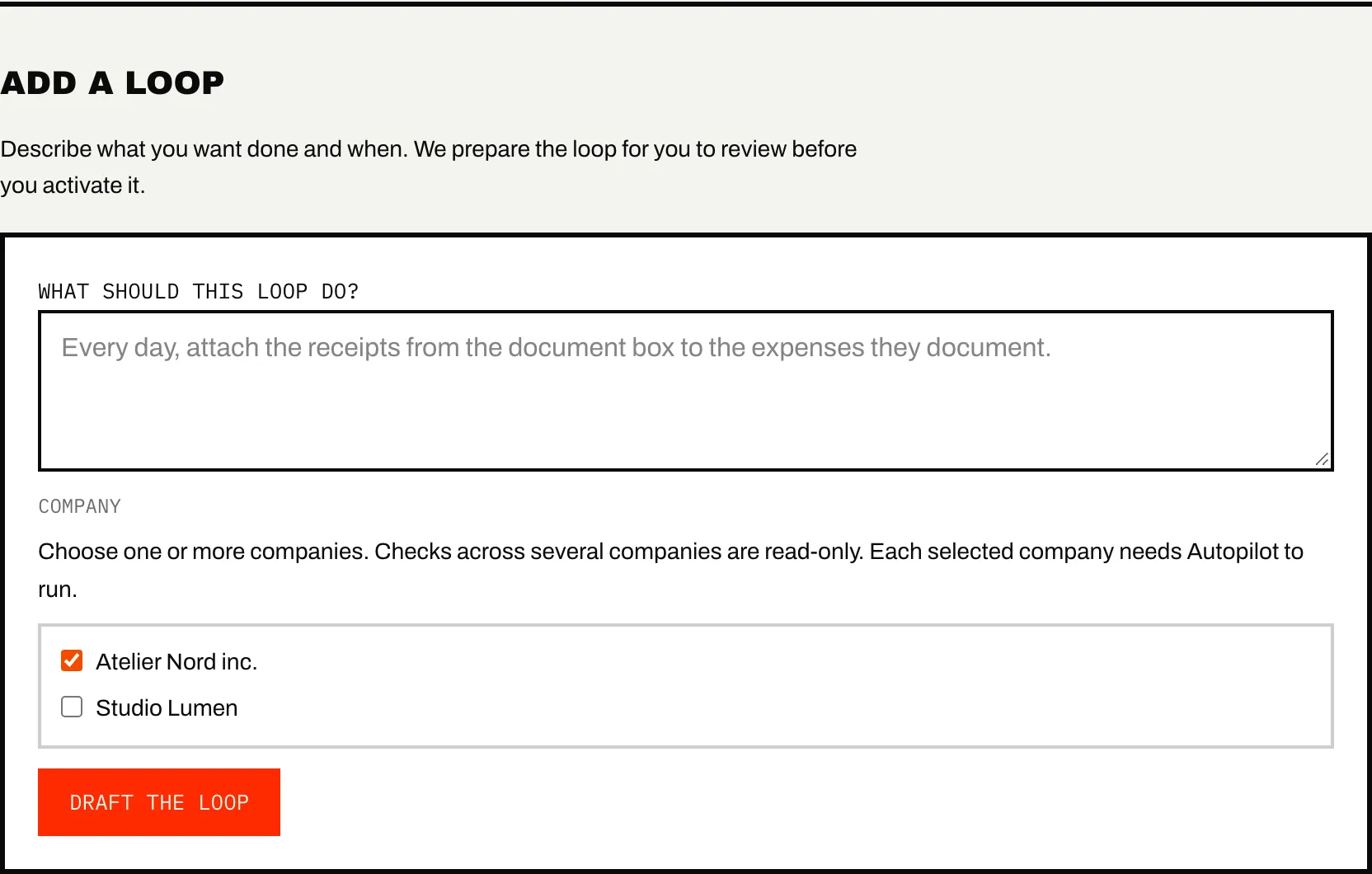
A loop is one piece of recurring work, written as a sentence: "Every day, attach the receipts from the document box to the expenses they document." Caribooks turns the sentence into a loop that runs on its schedule, reads your books and documents, and proposes the changes. Loops run only on companies with Autopilot.
Write your own loop
- Under Add a loop, describe what you want done and when in What should this loop do?
- Pick the Company. You can pick several companies only for a check that reads and changes nothing; a loop that prepares changes works on one company.
- Press Draft the loop.
Caribooks turns your sentence into a paused loop card: Loop drafted. Read it back below, then activate it. The line under your sentence says when the loop runs, what it looks at, what it may do on its own, what it asks first, and when its work is done. If it is right, turn on On. If not, change the sentence under Edit loop. A sentence that cannot become a loop is refused with a note on what to add.
Start from the library
Under Or start from the library, ready-made loops are grouped as Documents, Categorization, Payables, Receivables and Month end. Some are marked read only: they report findings and never change the books.
- Press Set up → on a loop.
- Adjust its sentence if you like. How it works explains what it does.
- Choose When it runs and the Company.
- Press Start this loop.
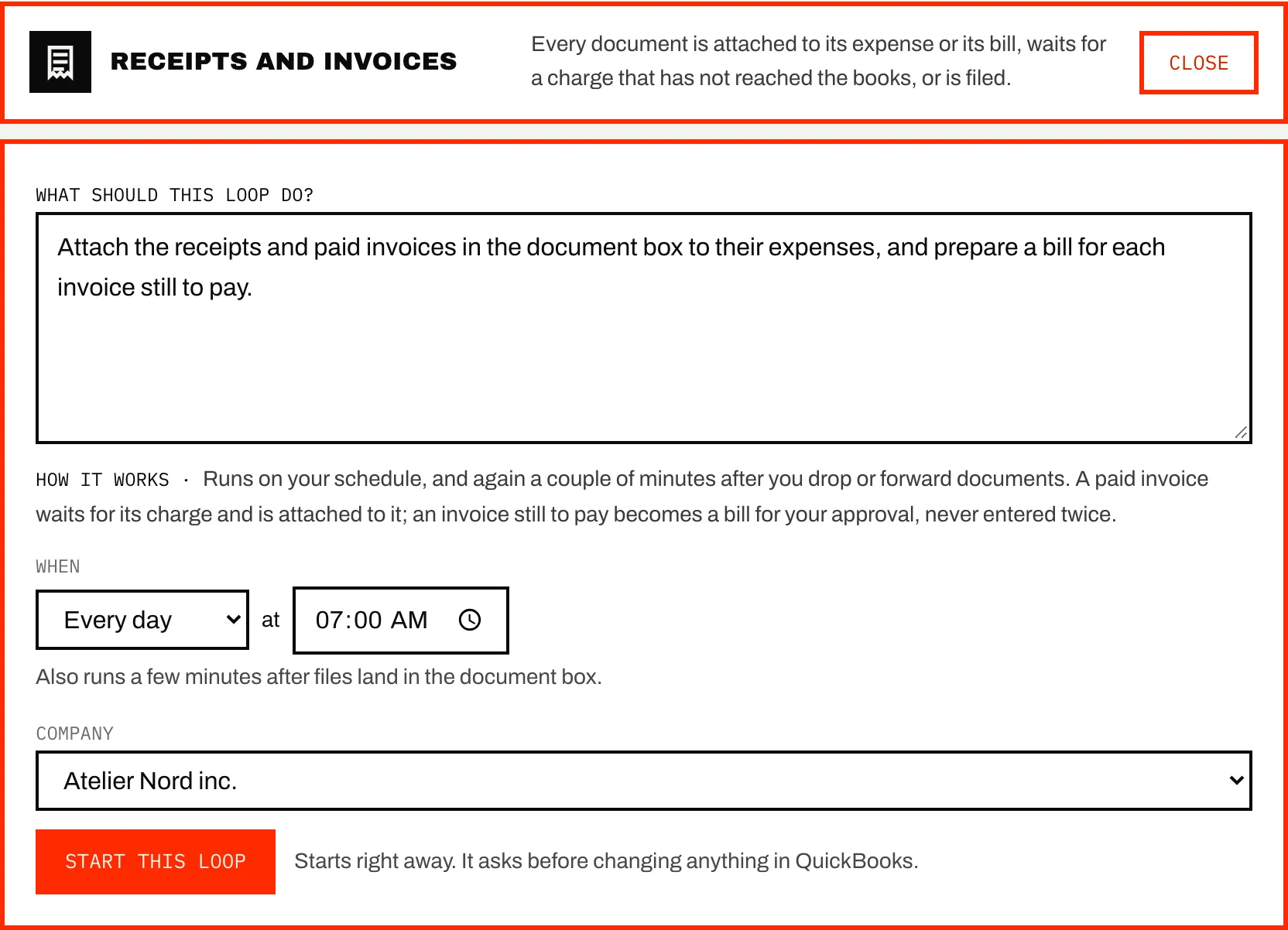
A library loop starts at once on a company with Autopilot and asks before changing anything in QuickBooks. A reworded sentence takes a few seconds to read first. Once a company runs a library loop, it leaves that company's shelf.
When a loop runs
A scheduled loop has a When picker: Every day, Every week on a weekday, or Every month on a day from the 1st to the 28th, at a time you choose, in Eastern time. Change it and press Save; the next run moves without the loop being read again.
Some loops also run a few minutes after files land in the document box; the card says so under the picker. Several files dropped together make one run.
A loop that watches the document box or your books skips a scheduled run when nothing is new there; its read-back says so. The skipped run reads "Nothing new since the last run, so there was nothing to do." A run you start, or one a dropped file starts, always runs.
The loop card
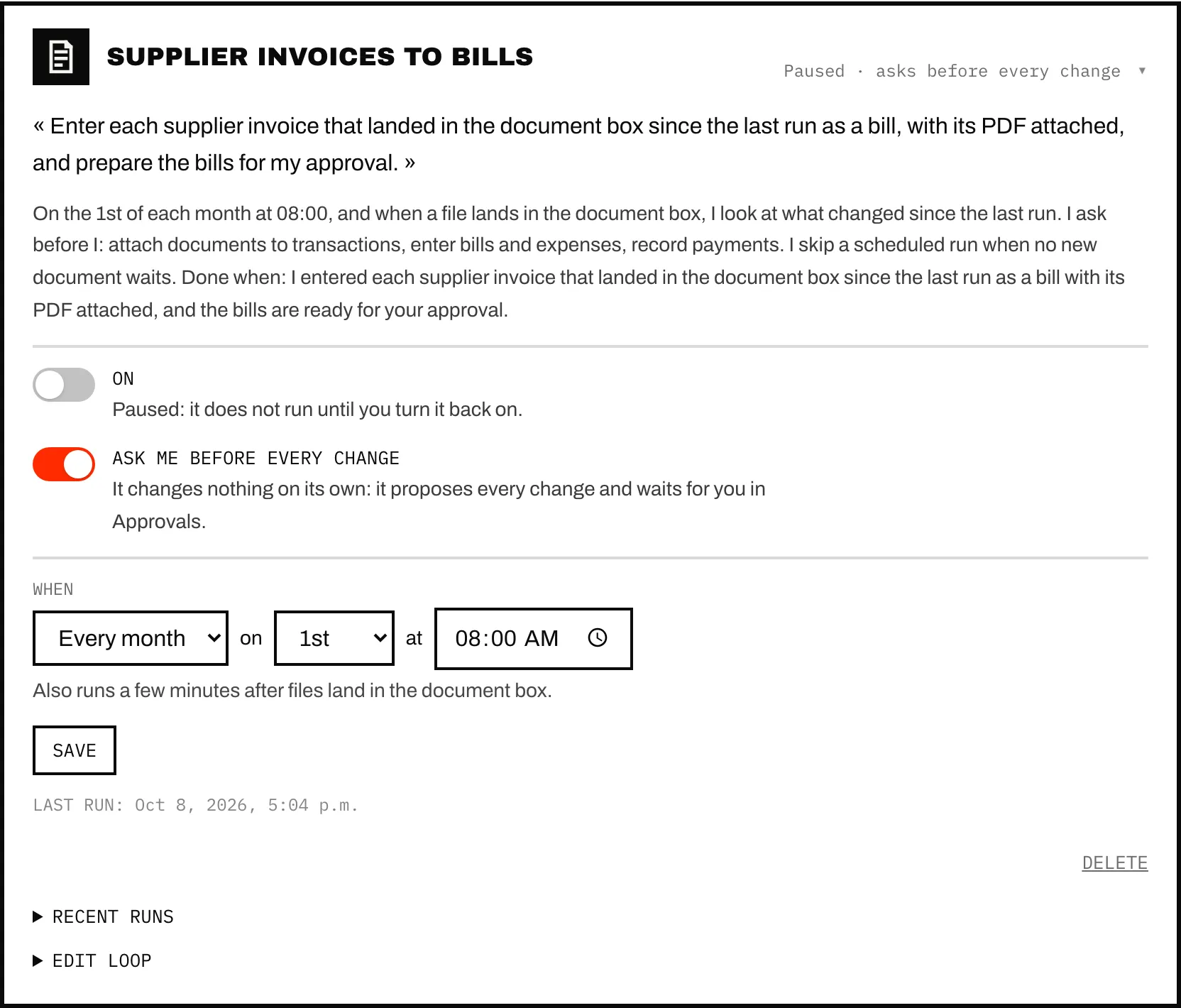
Folded, a card shows the loop's name and where it stands: On with its next run, Paused, Running… or Waiting for your approval. Open it for:
- your sentence and its read-back;
- On: pausing always works, and switching on needs Autopilot on the company;
- Ask me before every change: on while the loop is in preview (a read-only loop shows Read only instead);
- When and Save, for a scheduled loop;
- Last run, Run now and Delete;
- Recent runs and Edit loop.
Run now starts a run, which takes a few minutes; reload the page for the result under Recent runs, and find its changes in Approvals. A second press during a run starts nothing.
Changing the sentence under Edit loop pauses the loop until you switch it back on; the schedule stays. Delete asks first, and the changes the loop already made stay in Approvals.
Preview and acting on its own
Every new loop proposes every change and waits for you in Approvals. After three runs in a row where you approved what it proposed and rejected nothing, the card offers Let this loop act on its own? Only Let it act changes that, and Ask me before every change brings preview back. Autopilot lists what a loop may then do alone.
Runs and what a report shows
Each line under Recent runs gives when the run happened, what started it (Scheduled, On a drop or Run by you), how it ended (Done, Failed, Paused), how many changes it made and how many questions it asked. Open a line for the run's account, its questions and any error. See all runs lists every run, with an Outcome filter: Made changes, Asked a question, Failed.
A run asks a question when the books do not tell it what to do (loops on the document box never ask about a document). Questions also appear in your email summary. There is no reply box on a question.
A run that reaches its cap of changes stops and shows Paused.
Loops from your assistant
Your assistant can write a loop with create_task. Caribooks drafts it paused, and its start waits in Approvals as Start a loop; the loop's card reads Waiting for your approval. Approve it there, or tell your assistant to start it (activate_loop). Rejecting it deletes the draft. When you ask for the work now, the assistant can start the loop and run it at once, on a company with Autopilot. It can also list your loops (list_loops) and their proposals (list_proposals), but approving a change stays in the portal.
Ask your assistant
- "Every morning, attach the receipts in my document box to the expenses they document."
- "Every Monday, list the supplier invoices that look like duplicates. Don't change anything."
- "Which of my loops are paused?"